
If you remember the username you sign in with, this is the fastest way to get a new password. You'll answer your security question and then choose a new password right on the screen — no email required.
Before you start
- You need your username.
- You need to remember the answer to your security question (the one you set when your account was created).
- If you can't remember your security question answer, jump to the section "What if I can't remember my security question answer?" at the bottom of this article.
Step-by-step
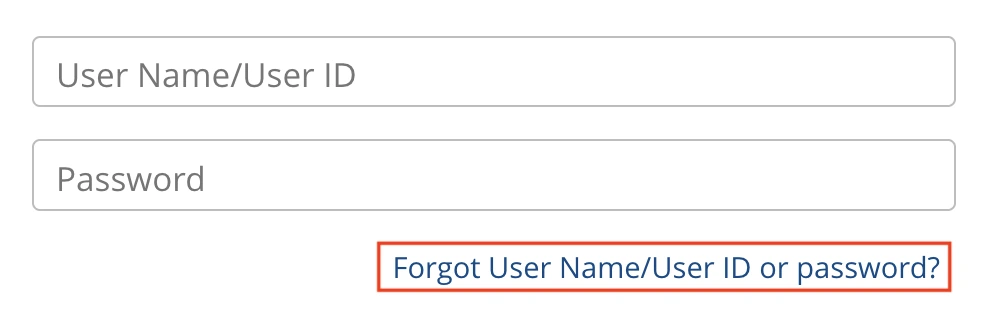
- Go to the sign-in page for your sport and click Forgot user name or password? below the Sign In button.
- You'll land on the Forgot Your User Name or Password? page. The Username method is selected by default, so you'll see a single field asking for your User Name.
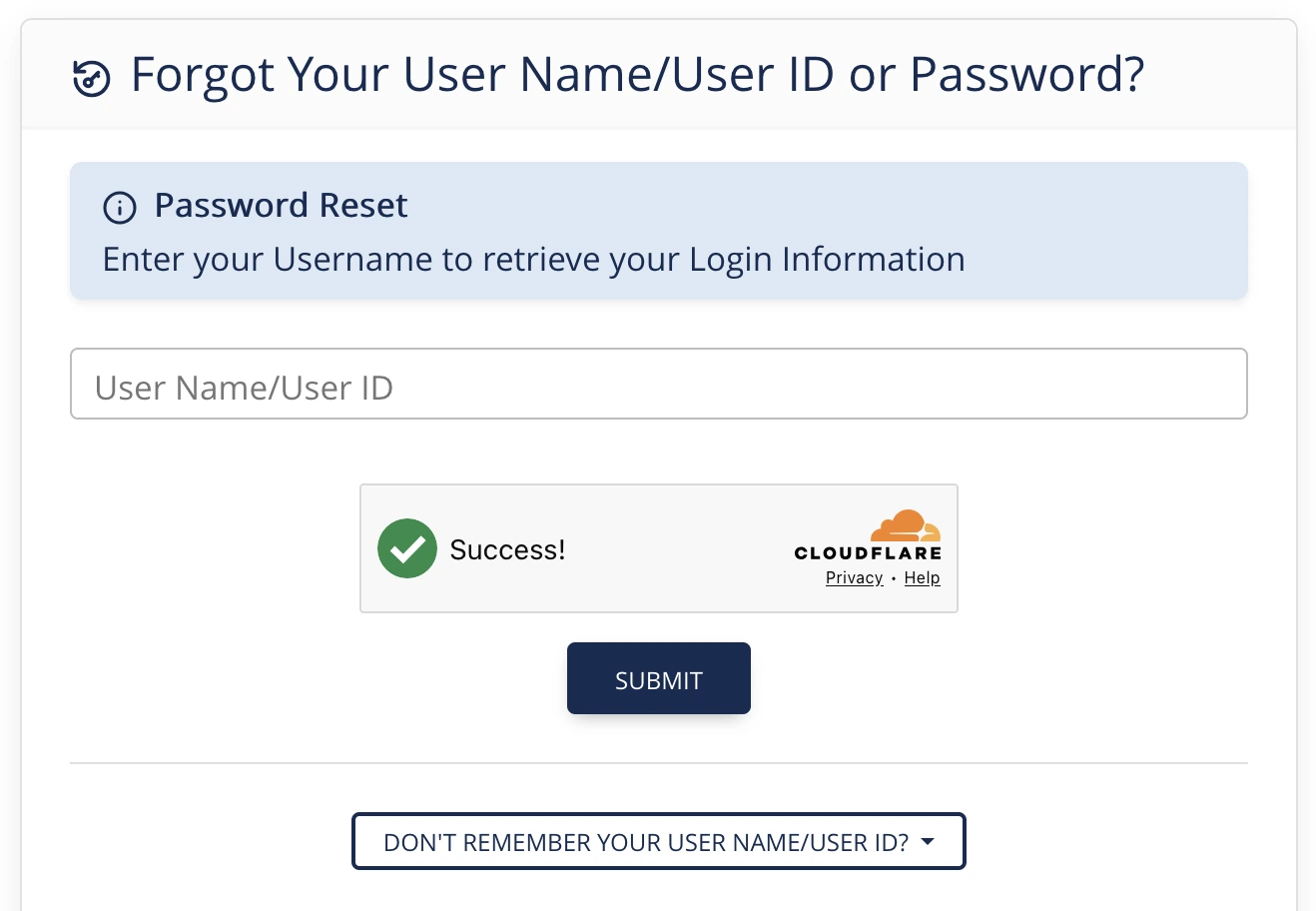
- Type your username into the User Name field.
- Complete the CAPTCHA challenge (the "I'm not a robot" check) if one is shown.
- Click the Submit button.
- The system will look up your account and show your Security Question. Type the answer to that question into the Answer field exactly as you originally entered it. Spelling and spaces matter.
- Click Submit Answer.
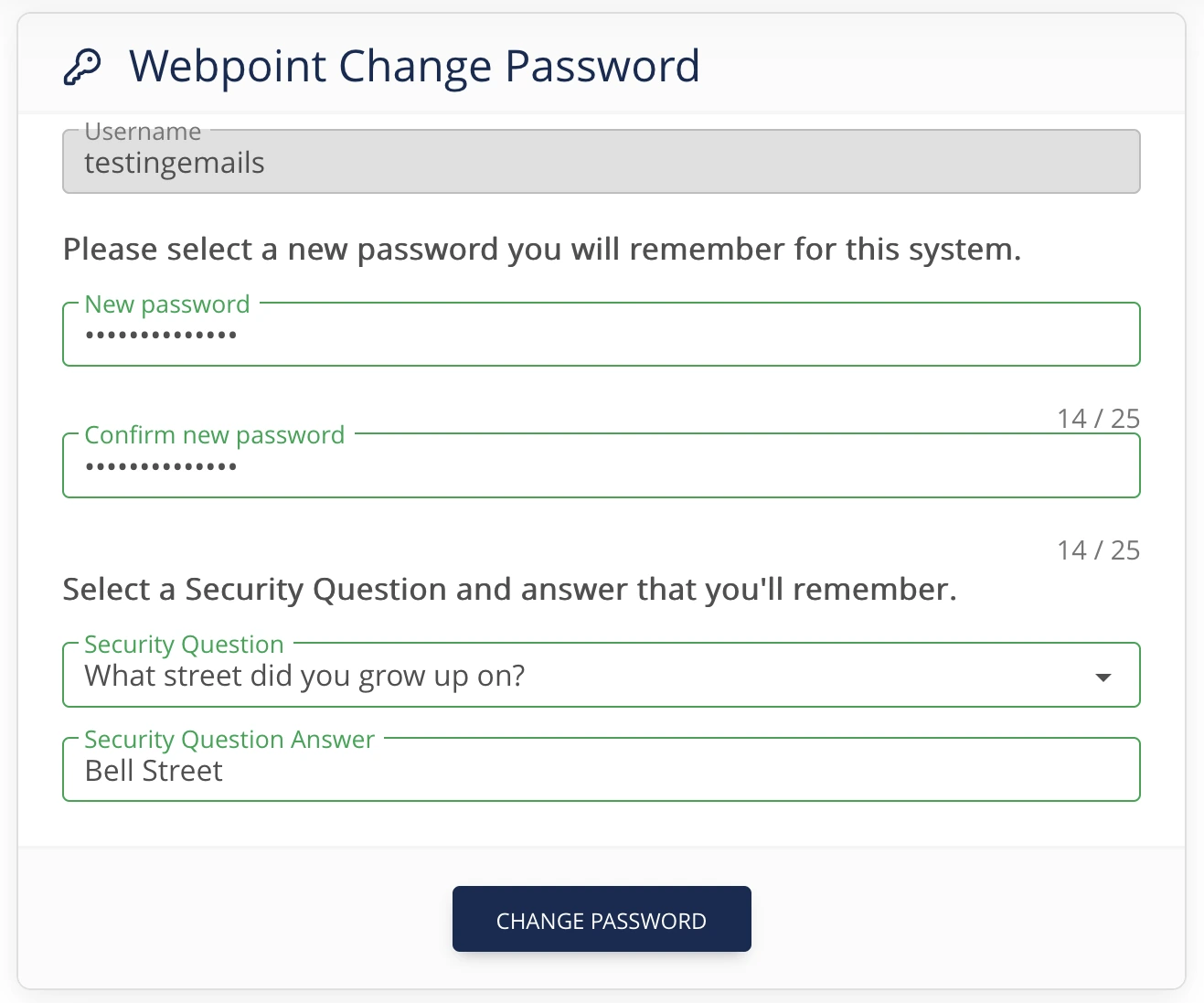
- If your answer is correct, the page will show your username at the top and ask you to choose a new password. Type your new password into the New password field, then type the exact same password again into the Confirm new password field.
- Your new password must be at least 8 characters.
- Click Update Password.
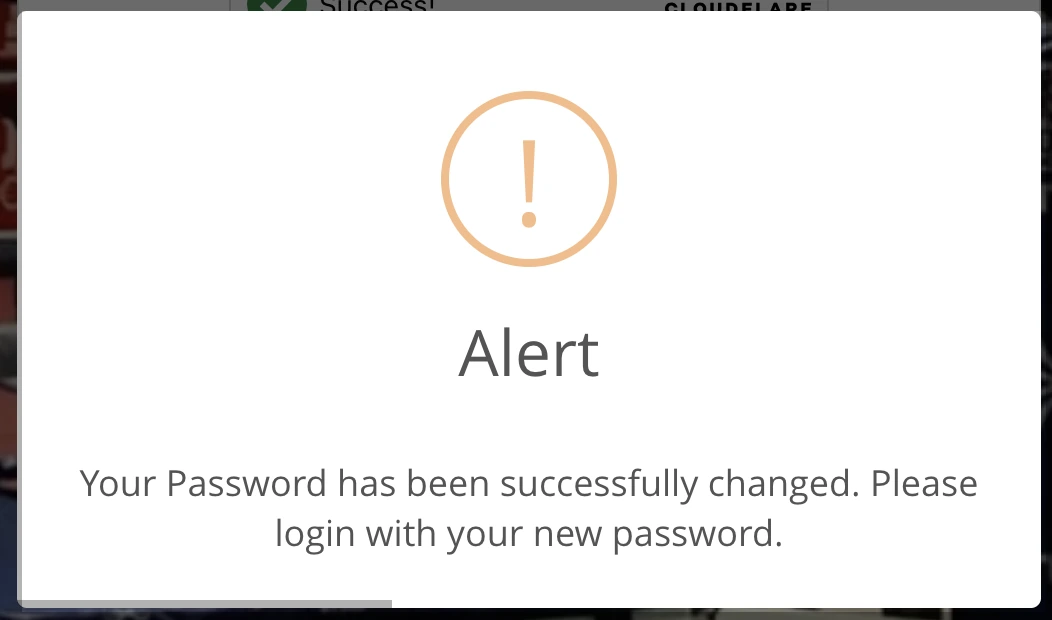
- You'll be returned to the sign-in page with a confirmation message: Your account has been updated. Please login with your new password.
- Sign in with your username and the new password you just set.
What if I can't remember my security question answer?
- On the page that asks for the Security Question answer, look at the bottom of the card for the line Don't Know Your Security Question?
- Click the button Request Password Reset Email.
- A password reset link will be emailed to the email address on file for your account. (You won't see the address; the system already knows it.)
- Open that email and click the reset link, then follow the rest of the steps in the article Reset your password using your email address, picking up from the Change Password page.
Common error messages and what they mean
- "No matching user account found." — The username you typed doesn't exist in our system. Double-check your spelling, or try Find your username instead.
- "This account is locked." — Your account has been locked by an administrator. You won't be able to recover it self-service — please contact your national office.
- "This account has been locked due to improper access attempts. Accounts are auto unlocked every 30 minutes." — Too many failed attempts on your account. Wait 30 minutes and try again, or use a different recovery method.
- "Our records indicate that you have not logged into the system yet. Please request a login." — Your account was created but you've never signed in. Contact your national office to request your initial login credentials.
- "This is a managed account and cannot be logged into directly. You MUST log in using the managing user's account to manage this account." — This account is a managed account — it's linked to and controlled by another person's account, most commonly a parent's or guardian's account. Managed accounts are typically set up for minors or dependents so that one adult can manage memberships, registrations, and certifications for everyone in their household from a single login. Because of this link, the managed account cannot be logged into on its own. It has no independent login of its own to sign in with — it is always accessed through the account that manages it.